To reset the lost forgotten root password in vRLCM Server Appliance follow the steps below:
- Take a snapshot of the vRealize Life Cycle Manager appliance before proceeding.
- Reboot the vRLCM Server Appliance.
- After the vRLCM Photon OS starts, press e key to enter the GNU GRUB Edit Menu.
- Locate the line that begins with the word Linux.
- Append these entries to the end of the line:
rw init=/bin/bash The line should look like the following screenshot:
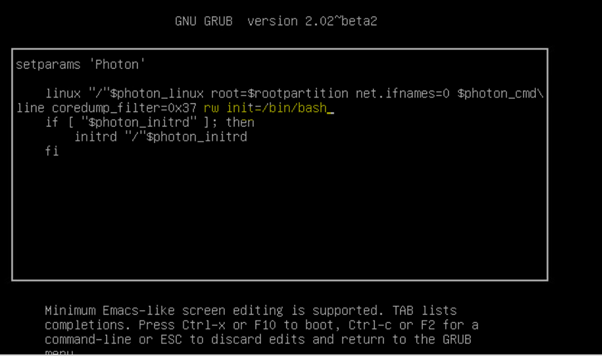
6. Press F10 to continue booting.
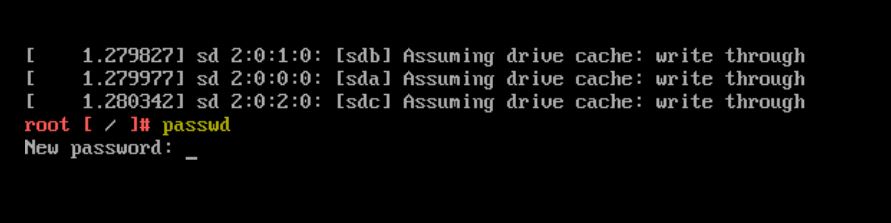
7. In the Command prompt, enter the command passwd and provide a new root password (twice for confirmation):
passwd
8. Unmount the filesystem by running this command
umount /
9. Reboot the vRLCM Server Appliance by running this command:
reboot -f
10. Confirm that you can access the vRLCM Server Appliance using the new root password.
11. Remove the snapshot taken in Step 1 if applicable.
Hope you like this post!
If you think this post is helpful to you, please like & share. All comments are most welcome for further discussion.
 vCloudInsights